 Improve Your Browsing - With Firefox Improve Your Browsing - With Firefox
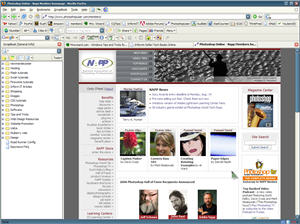 It is an amazing browser. If you haven't tried it yet, you are really missing one of the most fuss free Internet experiences available. I don't care if the newest version of Internet Explorer does have tabbed browsing. It is only one small part (and has been for a while) of the Firefox experience. It is an amazing browser. If you haven't tried it yet, you are really missing one of the most fuss free Internet experiences available. I don't care if the newest version of Internet Explorer does have tabbed browsing. It is only one small part (and has been for a while) of the Firefox experience.
Password Saving ...
If you are using Firefox on your personal computer, you can save a lot of time by saving passwords to frequently visited web sites. These may be sites you like to shop at and other sites that may require a subscription with a user id and password to access. The neatest thing about password saving on Firefox is you always have access to your passwords for all the sites that require them. Say you try to access a site and accidentally put in the wrong password. If you are using Internet Explorer, a window may pop up asking you if you want to save that password. You may still be thinking it is correct and answer yes. Well you have just saved the wrong password. This may not be a problem if you aren't a type A personality, but frankly it drives me nuts. Internet Explorer gives you no way (that I know of) to edit and remove specific passwords. It is either all or nothing. Firefox, on the other hand, gives total access to the passwords you have stored. You can view all of them, delete any specific passwords you want, and the password area is so easy to get to and edit.
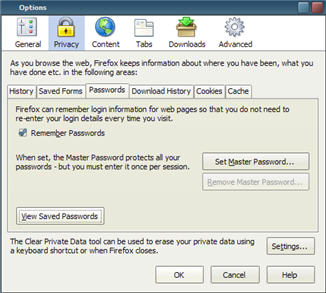 Click the word Tools at the top of the main Firefox window. Then click the word Options. When the Options window appears. click the Privacy tab. Then click the Passwords tab in the Passwords area. Click the word Tools at the top of the main Firefox window. Then click the word Options. When the Options window appears. click the Privacy tab. Then click the Passwords tab in the Passwords area.
In the Passwords area, click the box next to the words Remember Passwords to tell Firefox you want it to remember your passwords. There is a handy button that will allow you to view all your saved passwords. Click that button and edit to your heart's content. If you are really paranoid, click the Set Master Password so only someone with the master password can view the saved passwords.
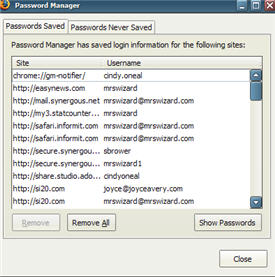 In the Saved Passwords area, you can easily delete individual passwords by clicking once to highlight, then clicking the Remove button. The View Passwords button is really nice. It will list each password in an additional column to the right. I'm talking the full passwords too, not that star crap no one can read. The Set Master Password button does add extra protection if you share your computer with the rest of the house or in an office environment, but for most home use, isn't really necessary. It is nice to know the option is at least available. In the Saved Passwords area, you can easily delete individual passwords by clicking once to highlight, then clicking the Remove button. The View Passwords button is really nice. It will list each password in an additional column to the right. I'm talking the full passwords too, not that star crap no one can read. The Set Master Password button does add extra protection if you share your computer with the rest of the house or in an office environment, but for most home use, isn't really necessary. It is nice to know the option is at least available.
Tabbed Browsing with Firefox...
You have them. Make them work for you. The more you use your tabs in Firefox, the more you will wonder what on earth you ever did without them.
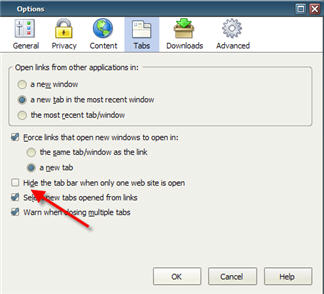
When you first install Firefox, you need to make sure your tabs are visible. Click the word Tools at the top of the main menu, then click the word Options. Click the Tab button at the top of the Options window and make sure there is not a check next to the words Hide the tab bar when only one web site is open.
 When browsing the Internet, instead of just clicking a link, right click the link and choose Open Link in a new tab instead. This will let you go off on browsing tangents without ever losing the site you started with. Each tab acts like a new browser window. This can be particularly handy if you are doing a Google search (or using any other search engine). Quite often you can end up with many promising result links. Clicking each link could end up being its own adventure. By right clicking your search result link and choosing to open it in a new tab, you will never have to worry about losing your main results page, or frantically hitting the back button on your browser to get back to it. Just click its tab and you are good to go again. You can right click on your bookmarks in Firefox too, with the same choice. When browsing the Internet, instead of just clicking a link, right click the link and choose Open Link in a new tab instead. This will let you go off on browsing tangents without ever losing the site you started with. Each tab acts like a new browser window. This can be particularly handy if you are doing a Google search (or using any other search engine). Quite often you can end up with many promising result links. Clicking each link could end up being its own adventure. By right clicking your search result link and choosing to open it in a new tab, you will never have to worry about losing your main results page, or frantically hitting the back button on your browser to get back to it. Just click its tab and you are good to go again. You can right click on your bookmarks in Firefox too, with the same choice.
Tabbing your favorites...
If you have two or three favorite sites open in tabs, click the word Tools again, then Options and click the General button at the top. Click the Use Current Pages button to set all your open pages as your "Home" pages. When you open Firefox the next time, your most favorite pages will open in nice, neat little tabs.
 Empty window tabs... Empty window tabs...
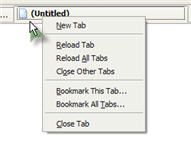
Any tab you click becomes the active browser tab. This means if you type an address in the address box at the top of the Firefox window, that tab will be recycled and the page address you type in will appear there. That's fine, if that is what you really want to do, but any time you want a fresh empty browser window tab, double click to the right of your tab row and a new empty one will appear. You can also right click on any tab and choose New Tab. There are other right click options too. If it is a page you want to save in your bookmarks, right click the tab and choose Bookmark this tab. Right clicking any tab will also give you the option to Reload (refresh) all or just that tab, as well as closing an individual tab or all of them for a nice fresh start!
Drag your tabs...
Left click and drag any tab to an empty area of your Desktop to make a quick shortcut. You can open any shortcut by dragging it from your Desktop right into a tab window.
 Scrapbooking with Firefox... Scrapbooking with Firefox...
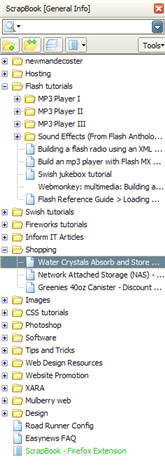
Well, it's not your typical scrapbook, but if you spend much time on the Internet you will certainly appreciate the Scrapbook Extension (free) for Firefox. It is as easy to install as it is to use. When you have it open (Click the word Scrapbook at the top of the main browser window, then click the word Scrapbook if it doesn't have a check next to it) it sits as a sidebar. Drag tabs to the sidebar to save entire web pages, pictures and all. You can create folders in your Scrapbook for even more organization. You can even create multiple scrapbooks. So save yourself a lot of typing, and pick up your copy now! http://amb.vis.ne.jp/mozilla/scrapbook/
Speaking of Extensions...
Since everyone has different needs and different skills, Firefox uses Extensions to literally extend your browser's usefulness according to your own personal needs. A web designer may require tools the average browser will never need to even understand. A researcher may gather up a special set of add-ons that make his browsing experience more productive. It is up to you. There are hundreds of Extensions for you to browse through and decide which ones you would like to use the most. 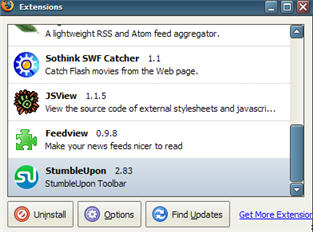 They all seem to be freebies and every extension I have installed has certainly been useful. To see what extensions are available for Firefox, click the word Tools, then the word Extensions. When the Extensions window opens, click the link at the bottom to Get More Extensions. I feel I must warn you though. Don't expect to spend just a few minutes browsing in the Extensions area. There are just too many, and the more you look, the more neat stuff you will find. Do TRY to RESTRAIN yourselves. They all seem to be freebies and every extension I have installed has certainly been useful. To see what extensions are available for Firefox, click the word Tools, then the word Extensions. When the Extensions window opens, click the link at the bottom to Get More Extensions. I feel I must warn you though. Don't expect to spend just a few minutes browsing in the Extensions area. There are just too many, and the more you look, the more neat stuff you will find. Do TRY to RESTRAIN yourselves.
Got questions?
Search mrswizard.com and compuquicktips.com
with Google!
|